

TL;DR:
- Fixing grammar errors quickly requires a multi-pass process combining automated tools with manual, targeted editing. Prioritizing category-based passes and personal error patterns ensures fast, accurate corrections within tight deadlines.
Fixing grammar errors fast means applying a structured, multi-pass editing method that combines automated grammar checkers with targeted manual techniques to catch both mechanical and context-sensitive mistakes in the shortest time possible. For students racing against submission deadlines, freelancers billing by the hour, and business professionals sending client-facing documents, the ability to correct grammar mistakes quickly is not a luxury. It is a professional baseline. Tools like Grammarly and ProWritingAid handle the mechanical layer, but automated tools alone catch only 60 to 70% of issues. The remainder requires a disciplined, human-led workflow.
What tools do you need to fix grammar errors fast?
The right toolkit is the difference between a 20-minute edit and a two-hour one. Three categories of tool cover the full range of errors you will encounter.
Automated grammar checkers form the first line of defence. Grammarly flags spelling, punctuation, and basic sentence structure in real time. ProWritingAid goes deeper, offering style analysis and readability scoring alongside grammar checks. LanguageTool is a strong open-source alternative, particularly useful for writers working in multiple languages. Modern correction systems achieve up to 96% accuracy on standard benchmark datasets, which means running your draft through any of these tools before manual review removes the bulk of surface errors immediately.
Find-and-replace functions in Microsoft Word, Google Docs, or any standard text editor let you hunt specific error patterns across an entire document in seconds. Searching for "its" flags every instance for a quick apostrophe check. Searching for "was" or "were" surfaces passive constructions. Targeted find-and-replace searches reduce edit time significantly compared to reading every line from scratch.
Text-to-speech tools such as the built-in reader in Microsoft Word, Natural Reader, or even Google Docs' voice typing feature in reverse let you hear your text read aloud. Your ear catches rhythm breaks, missing words, and awkward phrasing that your eye skips after repeated reading.
| Tool | Primary strength | Best for |
|---|---|---|
| Grammarly | Real-time mechanical error detection | Quick first-pass checks |
| ProWritingAid | Style, readability, and grammar combined | Deeper editing sessions |
| LanguageTool | Open-source, multilingual support | Budget-conscious writers |
| Microsoft Word editor | Integrated spelling and grammar | Document-based workflows |
| Natural Reader | Text-to-speech playback | Catching flow and rhythm errors |
Before you open any tool, set aside a distraction-free block of time. Even 20 to 30 minutes of focused editing on a 1,500-word text produces better results than an hour of interrupted checking. Close notifications, work in full-screen mode, and treat editing as a separate task from writing.
Pro Tip: Run your draft through an automated checker first, then close the document for at least ten minutes before your manual passes. Fresh eyes catch errors that familiarity hides.
How to perform quick multi-pass editing to correct errors efficiently
Category-based editing passes reduce cognitive load by keeping your attention on one error type at a time. Trying to fix grammar, punctuation, style, and meaning simultaneously causes you to miss issues and over-edit others. The following four-pass workflow is designed for speed without sacrificing accuracy.

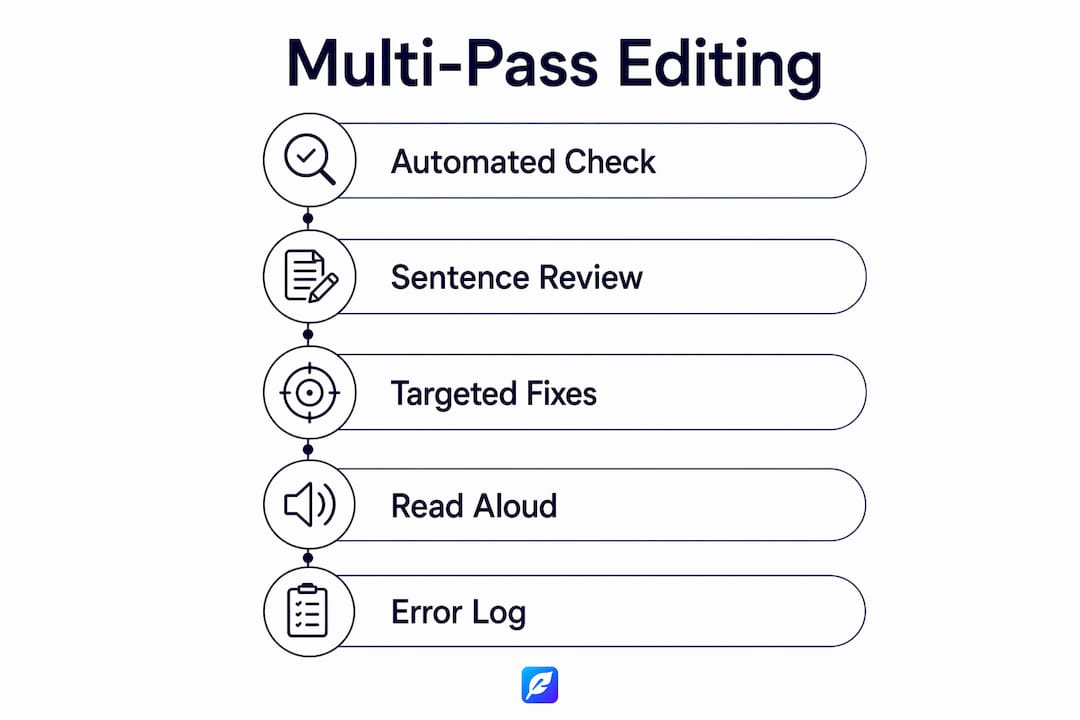
Pass 1: Automated grammar and spelling check. Paste your text into Grammarly, ProWritingAid, or LanguageTool. Accept clear corrections for spelling and obvious punctuation errors. Flag suggestions you are unsure about for the manual pass rather than accepting them blindly. This pass takes two to five minutes for most documents.
Pass 2: Manual scan for sentence boundary errors. Read through your text looking specifically for run-on sentences and comma splices. These are among the most common errors in student and professional writing, and automated tools sometimes miss them when the surrounding context looks plausible. A run-on joins two independent clauses without correct punctuation. A comma splice joins them with only a comma.
Pass 3: Targeted find-and-replace for recurring personal errors. Use your text editor's search function to locate the following patterns:
- "its" and "it's" to check apostrophe use
- "was" and "were" to identify passive voice constructions
- "their", "there", and "they're" for homophone confusion
- Subject-verb pairs you know you frequently miswrite
Prioritising personal frequent error patterns like apostrophes, passive voice, and homophones is the fastest route to consistent improvement for both students and business writers.
Pass 4: Read aloud or use text-to-speech. This final pass catches what every other method misses: missing words, repeated words, sentences that are grammatically correct but rhythmically broken, and meaning errors introduced during editing. Hearing your text forces you to process every word rather than predicting what should be there.
Pro Tip: During Pass 3, keep a personal error log. After ten documents, you will know your top five recurring mistakes and can build a custom find-and-replace checklist that takes under two minutes to run.
For a student-specific version of this workflow, the essay proofreading checklist for students on the Inspirowrite blog adapts these passes for academic writing conventions.
What common grammar errors cause the most delays?
Five error types account for the majority of time lost during editing. Knowing exactly how to fix each one removes the hesitation that slows most writers down.
Run-on sentences and comma splices are the most time-consuming because writers often sense something is wrong but cannot identify the fix. Four standard repairs exist, and you choose based on the relationship between the two clauses:
- Split with a full stop: "The report was late. The client was unhappy."
- Use a semicolon for closely related clauses: "The report was late; the client was unhappy."
- Use a comma plus a FANBOYS conjunction (for, and, nor, but, or, yet, so): "The report was late, so the client was unhappy."
- Rewrite with subordination: "Because the report was late, the client was unhappy."
Apostrophe misuse is fixed fastest with find-and-replace. Search "its" and ask: does this show possession (its cover) or does it mean "it is" (it's raining)? That single question resolves the confusion every time.
Passive voice overuse slows readers and weakens professional writing. Search "was" and "were" to surface passive constructions, then rewrite the most prominent ones with an active subject. You do not need to eliminate every passive construction. Prioritise the ones in opening sentences and key claims.
Subject-verb agreement traps appear most often with collective nouns ("the team are" versus "the team is") and with phrases that insert distance between subject and verb ("the list of recommendations were" should be "was"). Reading the subject and verb together, without the intervening phrase, resolves most of these instantly.
Homophone confusion (their/there/they're, affect/effect, practise/practice) is caught reliably by text-to-speech because the spoken word forces you to consider meaning rather than spelling.
Pro Tip: Build a two-minute pre-submission checklist from your personal top three errors. Running it before every document you send takes less time than a single correction request from a client or tutor.
For a broader reference on common grammatical errors, the Inspirowrite guide covers the full range with clear examples.
How do you avoid pitfalls when editing quickly?
Speed creates its own category of mistakes. The most common is over-editing: changing sentences that are grammatically correct because they feel unfamiliar after repeated reading. A meaning-first reading pass under time pressure prevents this. Before making any change, ask whether the sentence communicates its intended meaning clearly. If it does, leave it unless there is a specific grammatical reason to alter it.
Automated tools introduce a second pitfall: accepting suggestions without reading them. Grammarly and ProWritingAid are trained on general writing patterns. They do not know your brand voice, your field's technical vocabulary, or the specific argument you are making. Human review remains necessary to ensure that accepted suggestions preserve your intended meaning and do not flatten your voice into generic prose.
Context-dependent errors are the third category that trips up fast editors. Homophones, ambiguous pronoun references, and sentences that are grammatically correct but logically inconsistent with the surrounding paragraph all require reading in context. No automated tool resolves these reliably. Slowing down for one careful contextual read is faster in the long run than sending a document with a meaning error that requires a follow-up.
"The goal of fast editing is not to finish quickly. It is to finish correctly in the least time possible. Those are different targets, and confusing them is where quality breaks down."
When you are working under genuine time pressure and cannot complete all four passes, prioritise Pass 1 (automated check) and Pass 4 (read aloud). These two passes together catch the widest range of error types for the time invested. Understanding why editing differs from proofreading also helps you allocate your limited time to the right task.
Pro Tip: If a sentence requires more than two attempts to fix, flag it and move on. Return to it after completing the rest of the document. Fresh context often makes the solution obvious.
Key takeaways
Fast, accurate grammar correction requires a structured multi-pass workflow that pairs automated tools with targeted manual checks, prioritising personal error patterns for maximum efficiency.
| Point | Details |
|---|---|
| Use automated tools first | Grammarly, ProWritingAid, and LanguageTool remove up to 70% of mechanical errors before manual review begins. |
| Apply category-based passes | Editing one error type at a time reduces cognitive load and prevents missed issues. |
| Target personal error patterns | Using find-and-replace for your known recurring mistakes is faster than full rereads. |
| Prioritise meaning over speed | A meaning-first check before each fix prevents over-editing and accidental miscommunication. |
| Read aloud as a final pass | Text-to-speech catches rhythm errors, missing words, and meaning breaks that visual reading misses. |
Why the multi-pass method changed how I edit
I spent years editing the way most writers do: reading through a document once, fixing whatever caught my eye, and calling it done. The results were inconsistent. I would submit a piece confident it was clean, then spot a comma splice in the published version. The problem was not carelessness. It was trying to catch every error type simultaneously, which means your attention is always split.
Switching to category-based passes felt slower at first. It is not. Once the habit is built, four focused passes on a 1,000-word document take under 20 minutes, and the error rate drops noticeably. The find-and-replace pass alone has saved me more time than any single tool upgrade. Knowing that I consistently misuse passive voice in first drafts means I can resolve 80% of those instances in three minutes flat.
My honest view on automated tools is this: they are indispensable for the first pass and nearly useless for the last one. Grammarly will not tell you that your third paragraph contradicts your first, or that your sentence is technically correct but sounds nothing like you. That judgment belongs to you. The tools earn their place in the workflow, but they do not replace the workflow.
The writers I see improve fastest are not the ones who find the best tool. They are the ones who build a repeatable process and stick to it across every document, regardless of length or deadline pressure.
— Mike
Polish your writing with Inspirowrite
Grammar errors slow you down and undermine the credibility of your work. Inspirowrite is an AI-powered proofreading tool built for writers who need fast, accurate results without compromising privacy. Your content is never used to train AI models, which matters for students submitting original work and professionals handling confidential documents.
Inspirowrite delivers corrections within seconds, covering grammar, style, and translation accuracy in one place. It fits directly into your existing editing workflow as the automated first pass before your manual checks begin. Whether you are a student finalising an essay or a freelancer polishing a client report, try Inspirowrite and see the difference a purpose-built proofreading tool makes to your editing speed and confidence.
FAQ
What is the fastest way to fix grammar errors?
The fastest method combines an automated grammar checker such as Grammarly or ProWritingAid for the first pass with a targeted find-and-replace search for your known recurring errors. Together, these two steps resolve the majority of issues in under ten minutes for most documents.
Can automated tools fix all grammar errors?
Automated tools catch 60 to 70% of mechanical errors but miss context-dependent mistakes such as homophone confusion, ambiguous pronoun references, and meaning errors. A manual reading pass is always required to catch what tools leave behind.
How do you fix run-on sentences quickly?
Split the sentence with a full stop, insert a semicolon, add a comma plus a FANBOYS conjunction, or rewrite one clause as a subordinate phrase. Choosing between these four options takes seconds once you can identify where one independent clause ends and the next begins.
How many editing passes does a document need?
A four-pass approach covering automated checking, manual sentence boundary review, targeted find-and-replace, and a read-aloud pass handles the full range of error types efficiently. Under time pressure, the automated check and read-aloud pass together provide the best coverage for the time invested.
How do I improve grammar fast over time?
Keep a personal error log tracking the mistakes you fix most often. After reviewing ten documents, you will have a clear picture of your top recurring errors and can build a custom checklist that takes under two minutes to run before every submission.