

Yes, you can restore a previous draft, and it's usually reversible. Open your editor's version history or edits timeline first: that's where every saved state lives. Most AI proofreading and translation editors auto-save a snapshot of your current text before letting you roll back, so a restore rarely means real risk. You're looking at a safety net, not a one-way door.
TL;DR:
- Restoring a previous draft is usually safe and non-destructive because most editors automatically back up current versions before reverting.
- Use the version history panel to preview, compare, and restore specific passages or entire files to avoid losing good work.
- Restores only modify the draft state without affecting the published content unless explicitly published, keeping the original live version intact.
- Limited version retention can cause older versions to disappear, so verify retention settings and permissions if the needed draft is missing.
- Adopting clear naming conventions, proper collaboration habits, and using diff tools minimizes the need for restores and makes version management more reliable.
Table of Contents
- How do I restore a previous draft step by step?
- Whole document, single file, or just one passage?
- Will restoring delete my other edits?
- Why can't I find the version I need?
- What habits stop you needing a restore in the first place?
- What writers actually need from version history
- Try Inspirowrite's version history for yourself
- Where to check if your editor behaves differently
- Sources
- FAQ
How do I restore a previous draft step by step?
The exact wording varies between tools, but the mechanics are near-identical everywhere. Version control at its core, whether in a document editor or a codebase, works on the same principle: a permanent history of changes, attributed and comparable, so you can always step back to a known state.
Here's the sequence that works in almost any editor with saved versions:
- Open the history panel. Look for "Version History", "Timeline", or an "Edits" tab, usually tucked into a sidebar or a clock icon near the document title.
- Scan the list by date and description. Good editors don't just show timestamps, they attach a short edit card describing what changed ("shortened intro", "formal tone applied"). Some story editors let you view a version in read-only mode before touching anything.
- Preview before committing. If a preview option exists, use it. You want to confirm this is genuinely the version you need, not just the closest match by time.
- Click Restore and confirm. A dialog usually asks you to confirm the action, and often notes that your current draft will be saved automatically first.
- For small fixes, copy across instead. If you only need one paragraph back, don't restore the whole file. Open the old version, copy the specific passage, and paste it into your current draft.
That last step matters more than people think. A full restore is blunt, copying a fragment is precise, and it means you don't accidentally undo three other edits you actually wanted to keep.
Whole document, single file, or just one passage?
Restores aren't all-or-nothing. Most editors that keep version history offer more than one level of granularity, and picking the wrong one is how people accidentally erase good work along with the bad.
- Whole-document restore, for when an AI rewrite went badly off track and you want to undo everything since a specific point.
- Single file or chapter restore, useful when you're working across a longer manuscript or project and only one section needs rolling back, leaving edits elsewhere untouched.
- Single-passage copy-across, the safest option, where you pull just the sentence or paragraph you need from an older version into the live draft.
Editors built for longer projects often document this explicitly. Writing tools that support whole-book, single-file, and single-passage restore paths tend to auto-create a backup of your current content before the restore runs, which is exactly the safety net you want when you're not fully sure which version you need.
Before committing to any restore, check whether your editor has a compare or diff view. Seeing the two versions side by side, old and current, takes the guesswork out of deciding what actually changed.
Pro Tip: If you're torn between restoring the whole document and just fixing one paragraph, default to copy-across. It's slower by about ten seconds, but it never costs you edits you didn't mean to lose.
Will restoring delete my other edits?
No, and this is the part that trips people up most. A restore is designed to be non-destructive in nearly every modern editor.
Here's what typically happens behind the scenes: the editor auto-creates a backup of your current draft the moment before the restore executes. Restoring an older version doesn't erase the versions that came after it either. They stay in your history, so if the restore turns out to be the wrong call, you can restore forward again to undo the undo.

There's a second distinction worth understanding: draft state versus published state. Restoring a draft inside your editor typically updates only the editor's working copy. Your live, published content stays exactly as it was until you explicitly publish the restored version. Some platforms are strict about this separation. Documentation on website restores makes clear that a restore changes the draft while leaving the published site untouched until you act again.
Retention limits are the one variable worth checking yourself: how far back your version history actually goes depends on your editor's settings and, for business accounts, your team's policy.
Why can't I find the version I need?
Most restore failures come down to five recurring causes, and each has a fast fix.
- No versions visible at all. Check that autosave is switched on, and confirm your account role actually has permission to view history. Some team plans restrict this to owners or editors.
- Missing older versions. This is usually a retention limit, not a bug. Check your editor's retention window, and export history manually if that option exists.
- Edit descriptions too vague to identify the right version. Preview each candidate rather than guessing from the timestamp alone, and copy the specific text you need rather than restoring blind.
- Accidentally published a bad restore. Restore the correct draft version, review it properly this time, then republish deliberately rather than rushing.
- Still stuck? Contact support with specifics. Include the exact timestamp, the version ID if one is shown, and a screenshot of the history panel. Vague tickets get vague answers.
What habits stop you needing a restore in the first place?
The best fix for a messy restore is never needing one. A handful of habits, borrowed from how professional teams handle document collaboration, make the difference.
- Adopt a naming convention. Something like
initials_date_reason(jm_20260214_shortened-intro) turns a wall of timestamps into something scannable in seconds. - Assign one document owner. Shared drafts with no clear owner are exactly where uncontrolled duplicate versions pile up, a problem document collaboration guidance flags directly.
- Write a short note every time you save. "Tightened conclusion" tells you more in three years than a bare timestamp ever will.
- Export and archive final copies separately. Version history is not a substitute for a proper long-term archive, particularly for anything with compliance obligations.
- Use diff or compare tools before restoring, and default to copy-across for minor fixes. A centralised repository with strict naming is the single biggest factor in finding the right version fast.
Pro Tip: Set a five-minute rule: if a save note takes longer than that to write, your document probably needs splitting into smaller files rather than a longer description.
For teams specifically, building this into a formal proofreading workflow removes most of the ambiguity before it starts.
What writers actually need from version history
Version history only earns its keep when you trust it enough to use it without hesitation. That trust comes from two things: knowing a restore won't silently erase work, and knowing exactly what changed and when. A privacy-first editor with fast, clear version tracking gives non-native speakers and students the confidence to let an AI rewrite a paragraph aggressively, knowing the earlier phrasing is one click away if the rewrite overcorrects. For finishing touches after a restore, a revision checklist or a guide to polishing a rough draft helps you settle on the final version rather than restoring back and forth indefinitely.
— Mike
Try Inspirowrite's version history for yourself
This tool gives you instant proofreading and translation edits without asking you to hand your text over for good. Every edit is saved with a clear history, so restoring an earlier draft takes seconds.
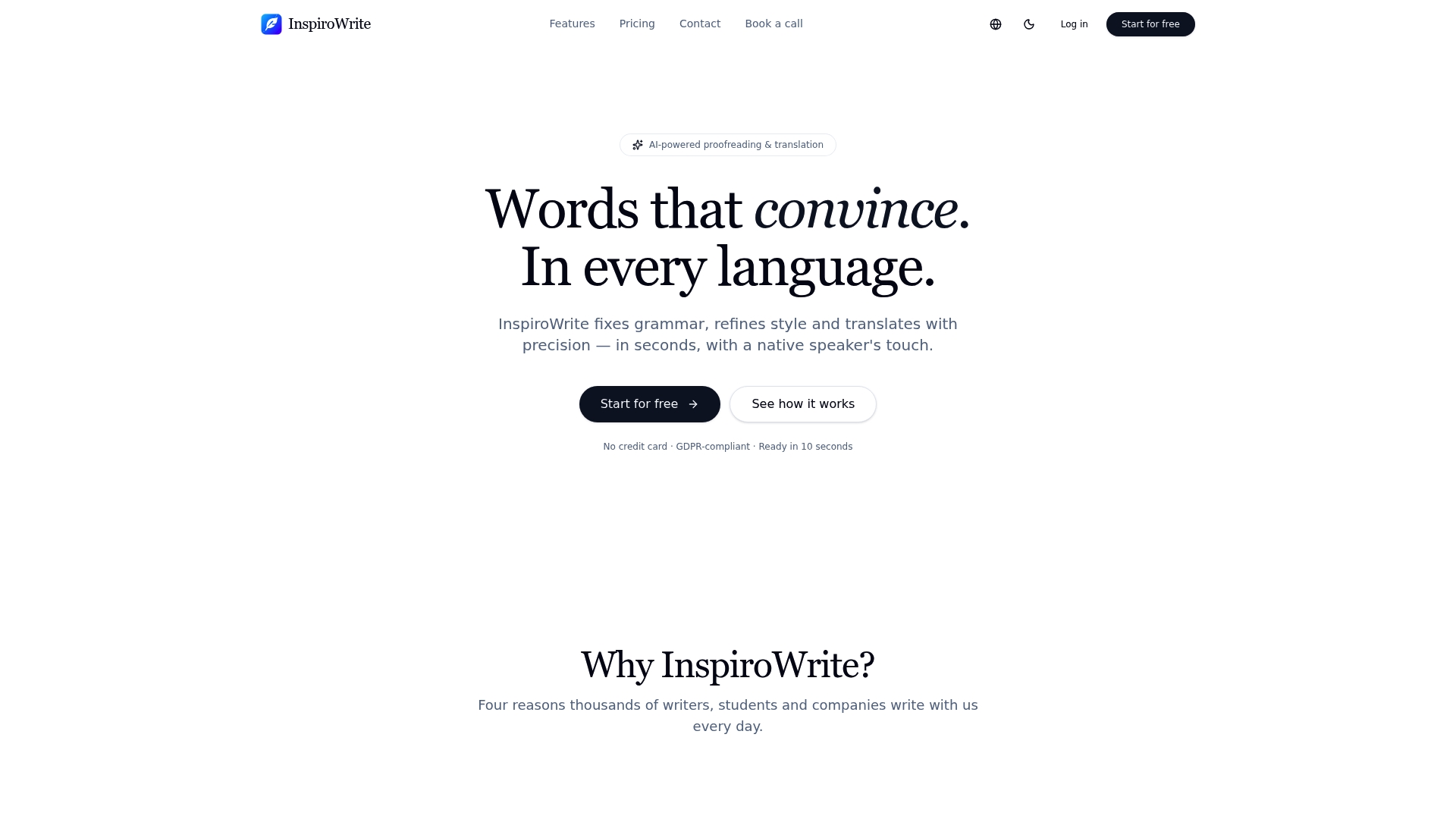
If privacy is your main concern before uploading anything sensitive, read the privacy commitments in full before you start. They set out exactly how your text is handled and why it stays confidential. When you're ready, open a document on the free plan and test the version history yourself: make an edit, save it, then restore the earlier draft and see how quickly it comes back.
Where to check if your editor behaves differently

For platform-specific detail, see B12's restore guide, Slima's version documentation, and OutaStory's guide to editing published content for how draft and live states differ elsewhere.
Sources
- Restoring a previous version of your website — B12 support
- Restore version or single file — Slima
- What is version control? — Atlassian
- Document collaboration — Zoho WorkDrive articles
- Top 10 document version control best practices for 2026 — CatchDiff
FAQ
Can I undo an AI rewrite after saving it?
Yes. Most AI editors save a new version after each significant edit, so opening the version history lets you restore the text as it stood before the rewrite.
Does restoring a draft delete my newer versions?
No, restoring is generally non-destructive. Later versions stay in your history, so you can restore forward again if the rollback wasn't what you needed.
Will restoring an old draft change my published content?
Not usually. Restoring typically affects only the draft or editor preview, and your live, published version stays unchanged until you explicitly publish the restored draft.
What if I can't find an old version at all?
Check your account permissions and confirm autosave was active, since restricted roles or disabled autosave are the most common reasons a version goes missing.
Should I restore the whole document or just copy a passage?
Copy across a specific passage whenever you only need to recover one section, and reserve a full document restore for major rollbacks where most of the recent work needs undoing.